
Finding and downloading resources
The Resources page is where you’ll find the documents, videos and templates your organisation has shared with you. You can search them, filter by category, save your favourites, and download what you need.
Opening the Resources page
Click Resources in the main menu.
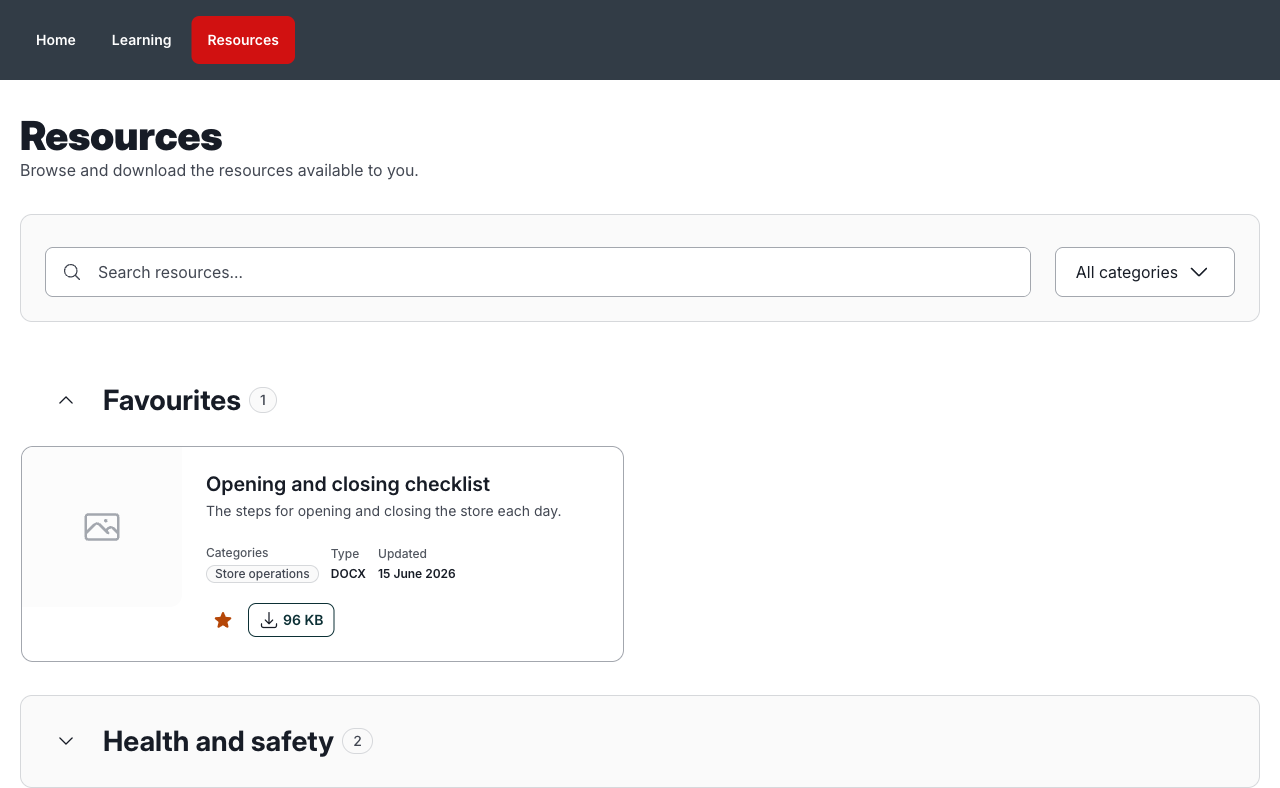
Your resources are grouped into sections:
- Favourites: resources you’ve starred. This section comes first.
- One section per category, in alphabetical order.
- Other: resources that don’t have a category. This section comes last.
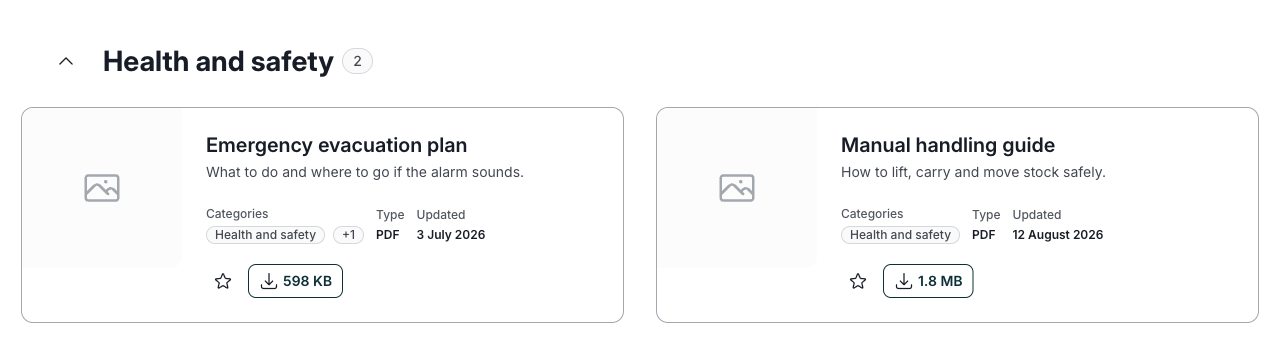
The first section is open when the page loads. Click any section heading to open or close it. The number next to each heading shows how many resources are in that section. If a resource is in more than one category, it appears in each of those sections.
What each resource shows
Each resource card shows its name and description, along with:
- Categories: the first category it’s in. If there are more, you’ll see a badge like +1. Hover over it or click it to see the others.
- Downloads: how many times it’s been downloaded. This only shows once it has been downloaded at least once.
- Type: the kind of file, such as PDF, DOCX, XLSX or MP4.
- Updated: when it was last changed.
Searching and filtering
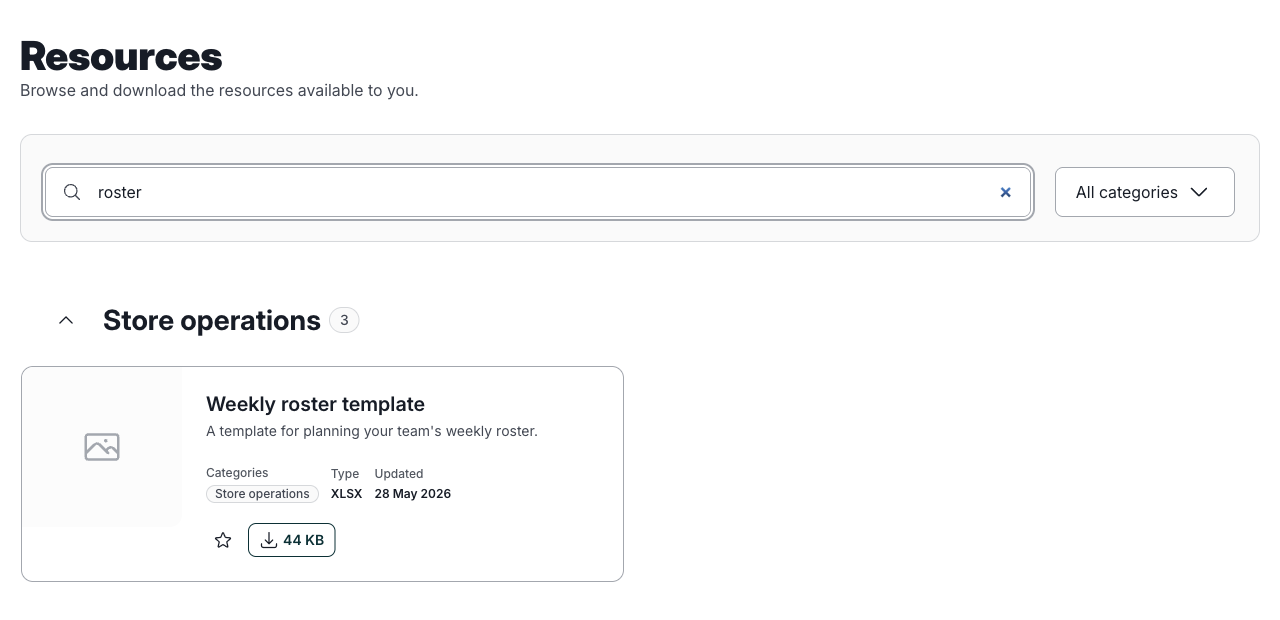
Type in the Search resources… box to narrow the list as you type. Search looks at each resource’s name, description and categories, and it will still find close matches if you make a small typo.
To see a single category, choose it from the All categories list next to the search box. You can search and filter at the same time.
If nothing matches, you’ll see “No matching resources”. Try a different word, or set the filter back to All categories.
Downloading a resource
Click the download button on the resource card. It shows the file size, such as 1.8 MB. The file opens in a new browser tab, where you can view it or save it.
If nothing happens when you click, your browser may be blocking pop-ups. Allow pop-ups for RedSeed and try again.
Saving your favourites
Click the star on a resource card to add it to your favourites. The star turns gold, and the resource appears in the Favourites section at the top of the page. It also appears under Favourite resources on your Home page.
To remove a favourite, click the star again.
Your favourites are personal. Starring a resource doesn’t change what anyone else sees.
Which resources you can see
You’ll see the active resources that have been shared with your location. If a resource you need isn’t there, ask your manager or your RedSeed administrator to check that it’s been shared with your location. If there are no resources for you yet, the page shows “No resources available”.
For administrators: if you can manage resources, you’ll see a Manage resources button at the top right of the page. Use it to add resources, edit them and choose which locations can see them. See How do I upload a document to RedSeed? and Managing locations. Administrators at the top level of your organisation see every active resource, whichever locations it’s shared with.
If you have any questions, talk with your Account Manager or contact support@redseed.me.